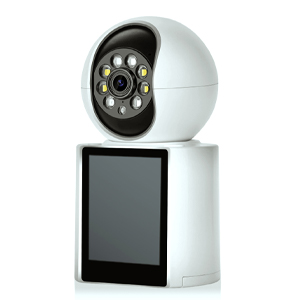
Many drivers have experienced this frustrating scenario: You’re about to reverse your car, open your phone to check the WiFi backup camera feed, and suddenly—the screen goes blank. Your phone has automatically switched to CarPlay, leaving you without a rearview display. This unexpected disconnection isn’t just inconvenient—it can even be a safety hazard.
Common symptoms include:
Sudden loss of WiFi backup camera feed while reversing
Phone automatically switching to CarPlay interface
Needing to manually reconnect the camera repeatedly
Frequent interruptions making reversing less smooth
After consulting manufacturers and app developers, we’ve identified the root cause:
System-Level Connection Priority—iOS prioritizes maintaining CarPlay connectivity as part of its core design.
App Permission Restrictions—In newer iOS versions, apps can’t access real-time WiFi connection status, meaning they can’t predict or prevent automatic switching.
A veteran in-car app developer explains, "Modern iOS systems strictly limit network status access. While this protects user privacy, it also creates compatibility issues like this one."
Try these steps:
Go to Settings > General > CarPlay
Select your vehicle configuration
Look for "Auto-Join" or "Automatic Connection" options (wording may vary by car model)
Disable automatic connection if available
Note: CarPlay menus differ slightly between vehicle brands. Check your owner’s manual for model-specific guidance.
When disconnection occurs:
Quickly open WiFi Settings
Manually select your backup camera’s WiFi network
Confirm any prompts (e.g., "Disconnect from CarPlay?")
Alternative options:
Dedicated Device—Use a separate phone/tablet just for the backup camera
Primary + Secondary Phone—Keep CarPlay on your main device and use another for the camera feed
Wired Backup Camera—Consider a hardwired system to avoid WiFi conflicts
This seemingly "inflexible" behavior stems from:
System stability as the top priority
Guaranteed performance for core features (like CarPlay)
Ecosystem consistency across all devices
Understanding these trade-offs helps find better workarounds.
Potential long-term fixes include:
Better vehicle system integration (e.g., built-in backup cameras with CarPlay support)
More granular connection controls in future iOS updates
Third-party innovations (e.g., Bluetooth-based camera alternatives)
Based on real-world user experiences, we suggest:
Try adjusting CarPlay settings first (most effective for many users)
Practice quick manual reconnection for emergencies
Consider a dedicated device if you use the backup camera frequently
Every vehicle and driver’s needs are different—finding the right balance between CarPlay and your backup camera is key to safe, stress-free reversing.
Pro Tip: Android phones handle WiFi switching more flexibly. If this is a major issue, using an old Android device just for your backup camera may be the simplest fix.
Copyright © 2023 INSEETECH LIMITED. All Rights Reserved.